Magic commands (optional)#
Jupyter AI can also provide IPython magic commands for invoking a language model directly in a notebook.
Installation#
Jupyter AI magic commands are now provided through the optional
jupyter-ai-magic-commands package. To use them, you will need to install this
into your environment.
pip install jupyter-ai-magic-commands
Setup#
Before you send your first prompt to an AI model, load the IPython extension by running the following code in a notebook cell or IPython shell:
%load_ext jupyter_ai_magic_commands
This command should not produce any output.
Note
If you are using remote kernels, such as in Amazon SageMaker Studio, the above
command will throw an error. You will need to install the package on your remote
kernel separately, even if you already have jupyter_ai_magic_commands
installed in your server’s environment. In a notebook, run
%pip install jupyter_ai_magic_commands
and re-run %load_ext jupyter_ai_magic_commands.
Usage#
Once the extension has loaded, you can run %%ai cell magic commands and
%ai line magic commands. Run %%ai help or %ai help for help with syntax.
You can also pass --help as an argument to any line magic command (for example,
%ai list --help) to learn about what the command does and how to use it.
Listing available models#
Jupyter AI also includes multiple subcommands, which may be invoked via the
%ai line magic. Jupyter AI uses subcommands to provide additional utilities
in notebooks while keeping the same concise syntax for invoking a language model.
The %ai list subcommand prints a list of available providers and models. Some
providers explicitly define a list of supported models in their API. However,
other providers, like Hugging Face Hub, lack a well-defined list of available
models. In such cases, it’s best to consult the provider’s upstream
documentation. The Hugging Face website includes a
list of models, for example. To get help:
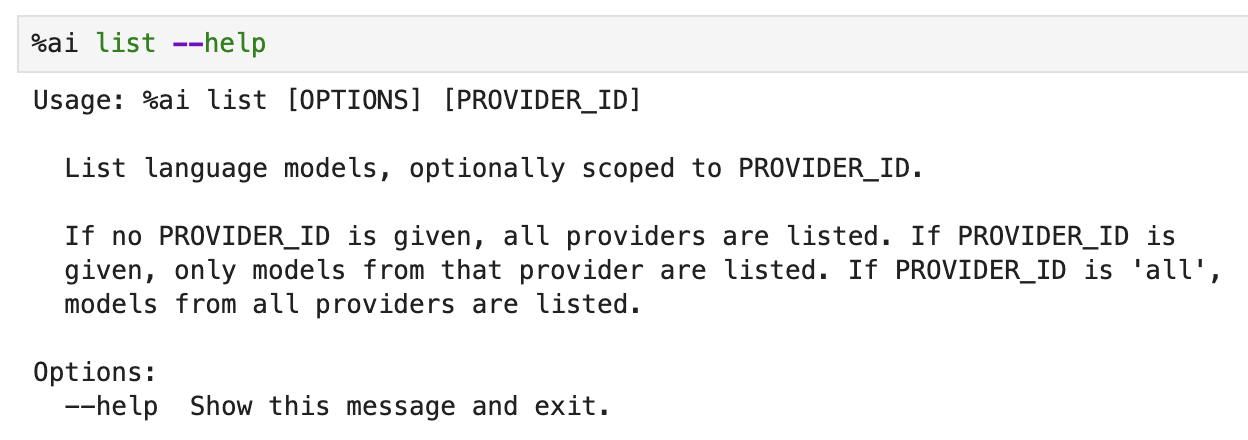
Optionally, you can specify a provider ID as a positional argument to %ai list
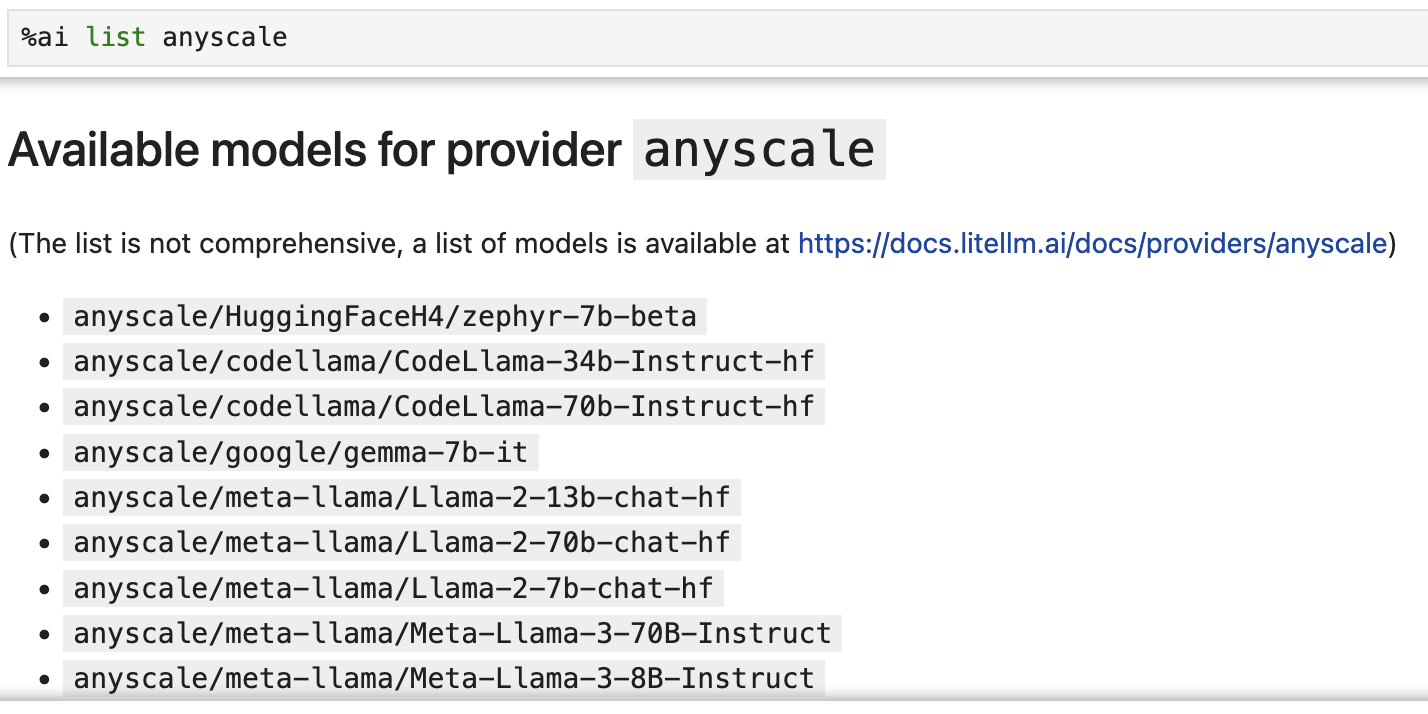
to get all models provided by one provider. For example, %ai list openai will
display only models provided by the openai provider.
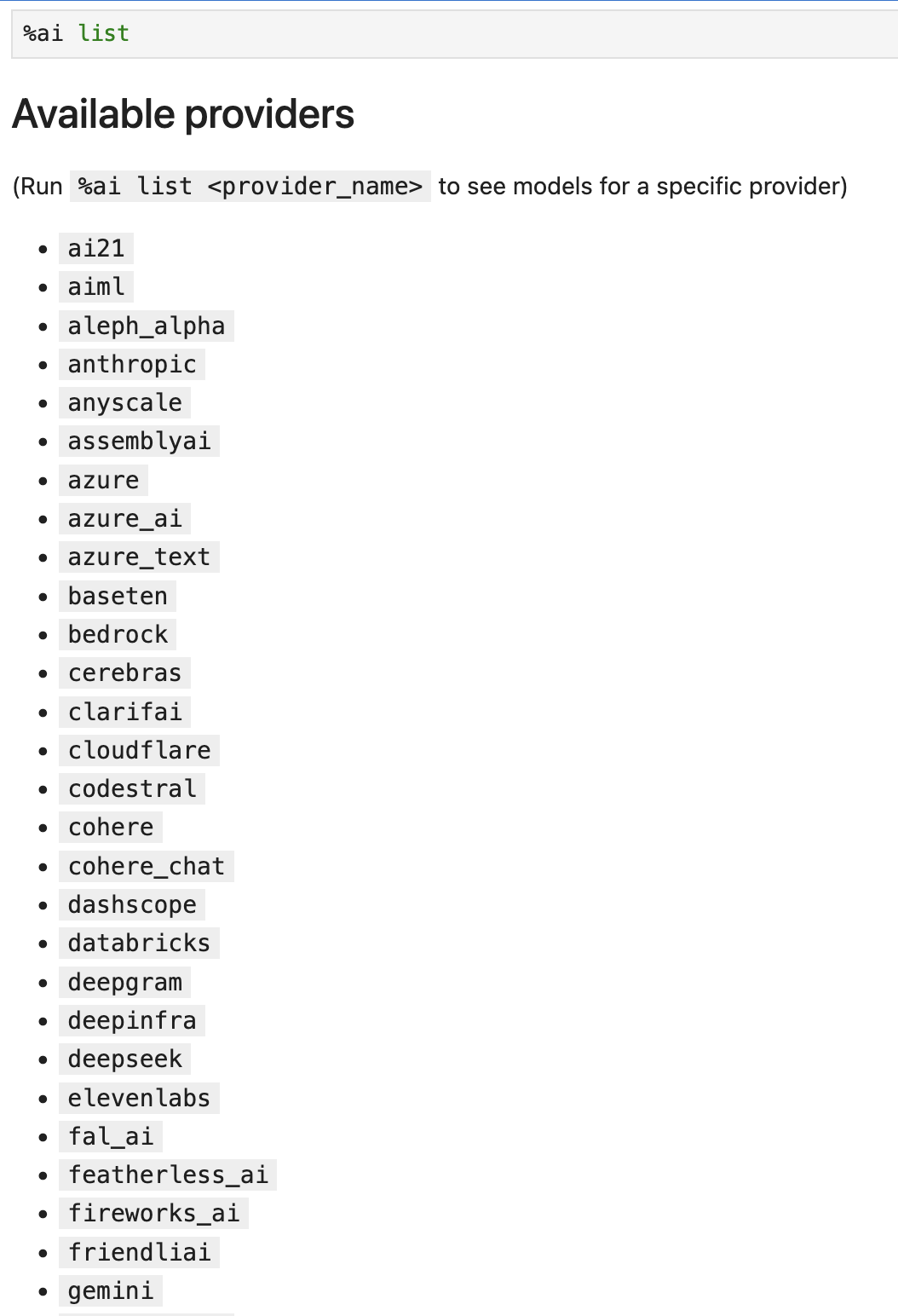
To see all the available providers run (the top of the list is shown):
Choosing a provider and model#
The %%ai cell magic allows you to invoke a language model of your choice with
a given prompt. The model is identified with a global model ID, which is a string with the syntax <provider-id>:<local-model-id>, where <provider-id> is the ID of the provider and <local-model-id> is the ID of the model scoped to that provider.
To see all the models for a given provider:
And to list all available models:
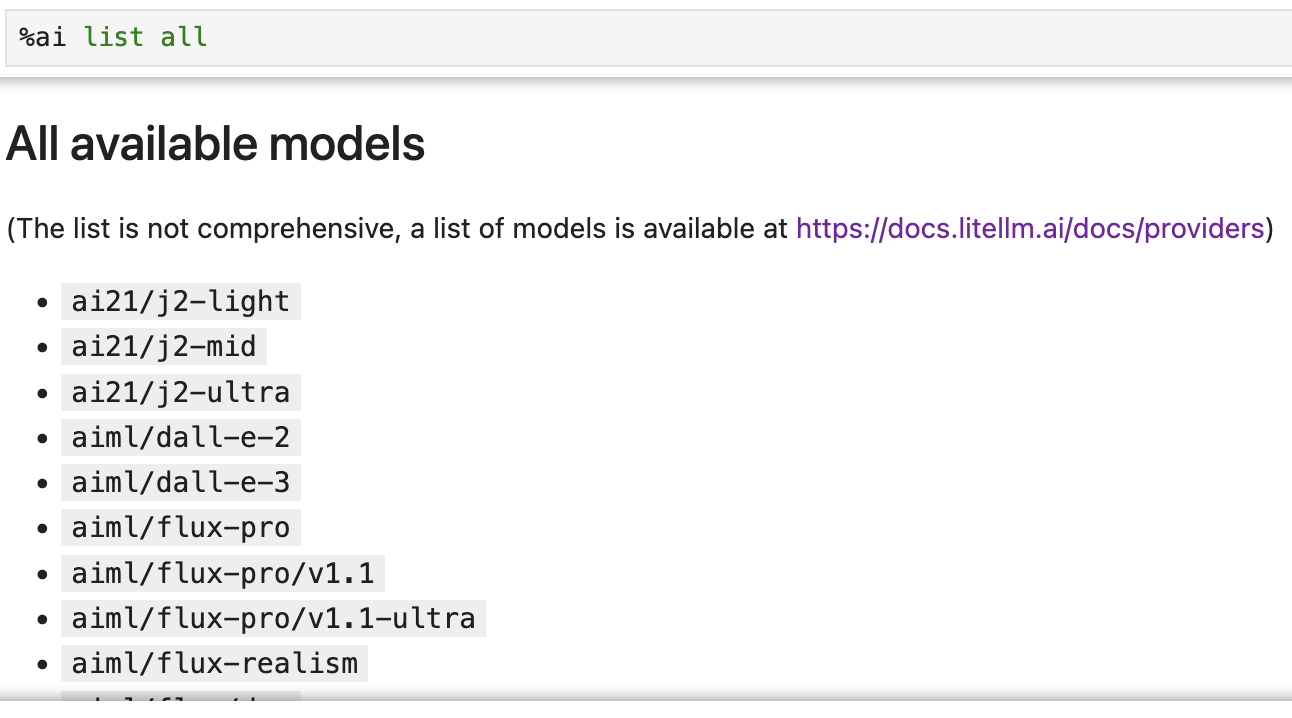
Invoking magics#
The prompt begins on the second line of the cell. For example, to send a text prompt to the provider bedrock and the model ID anthropic.claude-3-5-haiku-20241022-v1:0, enter the following code into a cell and run it:
%%ai bedrock/anthropic.claude-3-5-haiku-20241022-v1:0
What is the capital of France?
The response is:
The capital of France is Paris.
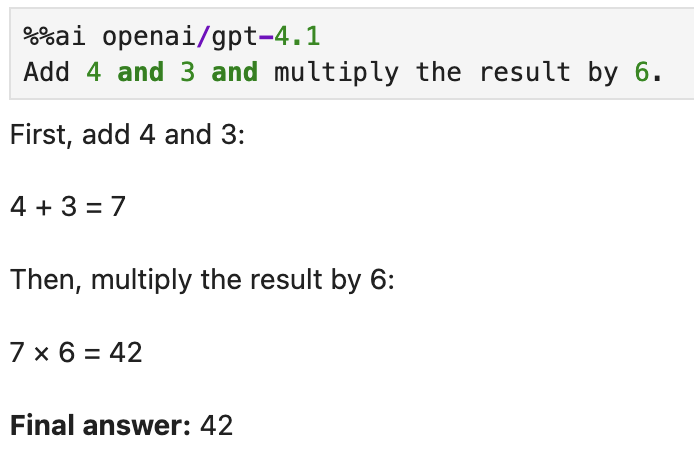
Another example using a different provider:
Configuring a default model#
To configure a default model you can use the IPython %config magic:
%config AiMagics.initial_language_model = "anthropic:claude-v1.2"
Then subsequent magics can be invoked without typing in the model:
%%ai
Write a poem about C++.
You can configure the default model for all notebooks by specifying c.AiMagics.initial_language_model tratilet in ipython_config.py, for example:
c.AiMagics.initial_language_model = "anthropic:claude-v1.2"
The location of ipython_config.py file is documented in IPython configuration reference.
Formatting the output#
By default, Jupyter AI assumes that a model will output markdown, so the output of
an %%ai command will be formatted as markdown by default. You can override this
using the -f or --format argument to your magic command. Valid formats include:
codeimage(for Hugging Face Hub’s text-to-image models only)markdownmathhtmljsontext
For example, to force the output of a command to be interpreted as HTML, you can run:
%%ai anthropic:claude-v1.2 -f html
Create a square using SVG with a black border and white fill.
The following cell will produce output in IPython’s Math format, which in a web browser
will look like properly typeset equations.
%%ai chatgpt -f math
Generate the 2D heat equation in LaTeX surrounded by `$$`. Do not include an explanation.
This prompt will produce output as a code cell below the input cell.
Warning
Please review any code that a generative AI model produces before you run it or distribute it. The code that you get in response to a prompt may have negative side effects and may include calls to nonexistent (hallucinated) APIs.
%%ai chatgpt -f code
A function that computes the lowest common multiples of two integers, and
a function that runs 5 test cases of the lowest common multiple function
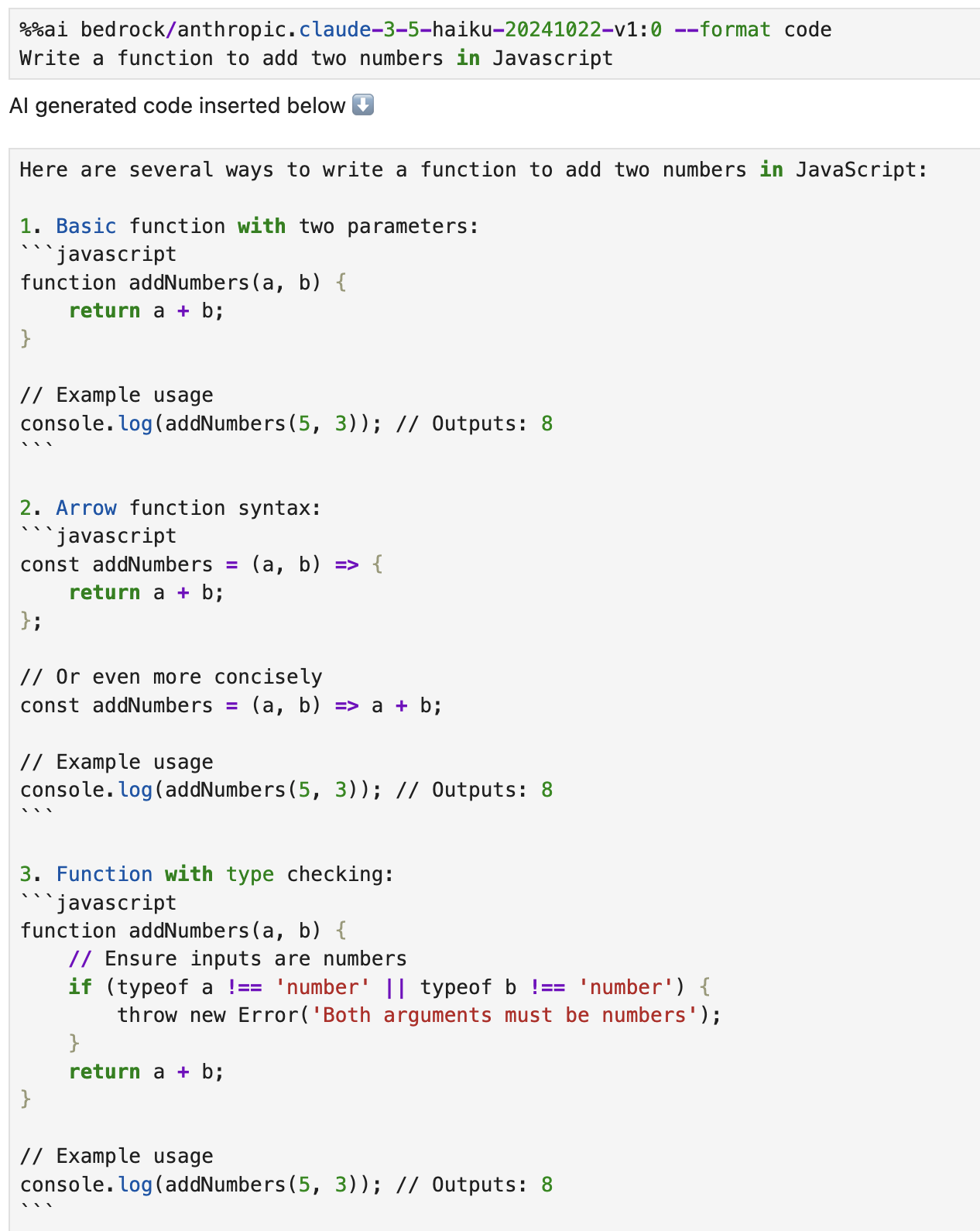
Another code example:
Configuring context window#
By default, two previous Human/AI message exchanges are included in the context of the new prompt.
You can change this using the IPython %config magic, for example:
%config AiMagics.max_history = 4
Note that old messages are still kept locally in memory,
so they will be included in the context of the next prompt after raising the max_history value.
You can configure the value for all notebooks
by specifying c.AiMagics.max_history traitlet in ipython_config.py, for example:
c.AiMagics.max_history = 4
Clearing the chat history#
You can run the %ai reset line magic command to clear the chat history. After you do this,
previous magic commands you’ve run will no longer be added as context in requests.
%ai reset
Interpolating in prompts#
Using curly brace syntax, you can include variables and other Python expressions in your prompt. This lets you execute a prompt using code that the IPython kernel knows about, but that is not in the current cell.
For example, we can set a variable in one notebook cell:
poet = "Walt Whitman"
Then, we can use this same variable in an %%ai command in a later cell:
%%ai chatgpt
Write a poem in the style of {poet}
When this cell runs, {poet} is interpolated as Walt Whitman, or as whatever poet
is assigned to at that time.
You can use the special In and Out list with interpolation syntax to explain code
located elsewhere in a Jupyter notebook. For example, if you run the following code in
a cell, and its input is assigned to In[11]:
for i in range(0, 5):
  print(i)
You can then refer to In[11] in an %%ai magic command, and it will be replaced
with the code in question:
%%ai cohere:command-xlarge-nightly
Please explain the code below:
--
{In[11]}
You can also refer to the cell’s output using the special Out list, with the same index.
%%ai cohere:command-xlarge-nightly
Write code that would produce the following output:
--
{Out[11]}
Jupyter AI also adds the special Err list, which uses the same indexes as In and Out.
For example, if you run code in In[3] that produces an error, that error is captured in
Err[3] so that you can request an explanation using a prompt such as:
%%ai chatgpt
Explain the following Python error:
--
{Err[3]}
The AI model that you use will then attempt to explain the error. You could also write a
prompt that uses both In and Err to attempt to get an AI model to correct your code:
%%ai chatgpt --format code
The following Python code:
--
{In[3]}
--
produced the following Python error:
--
{Err[3]}
--
Write a new version of this code that does not produce that error.
As a shortcut for explaining and fixing errors, you can use the %ai fix command, which will explain the most recent error using the model of your choice.
%ai fix anthropic:claude-v1.2
Creating and managing aliases#
You can create an alias for a model using the %ai alias command. For example, the command:
%ai alias claude anthropic:claude-v1.2
will register the alias claude as pointing to the anthropic provider’s claude-v1.2 model. You can then use this alias as you would use any other model name:
%%ai claude
Write a poem about C++.
You can also define a custom LangChain chain:
from langchain.chains import LLMChain
from langchain.prompts import PromptTemplate
from langchain.llms import OpenAI

llm = OpenAI(temperature=0.9)
prompt = PromptTemplate(
    input_variables=["product"],
    template="What is a good name for a company that makes {product}?",
)
chain = LLMChain(llm=llm, prompt=prompt)
… and then use %ai alias to give it a name:
%ai alias companyname chain
You can change an alias’s target using the %ai update command:
%ai update claude anthropic:claude-instant-v1.0
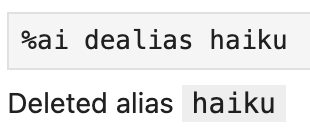
You can delete an alias using the %ai dealias command:
%ai dealias claude
You can see a list of all aliases by running the %ai list command.
Aliases’ names can contain ASCII letters (uppercase and lowercase), numbers, hyphens, underscores, and periods. They may not contain colons. They may also not override built-in commands — run %ai help for a list of these commands.
Aliases must refer to models or LLMChain objects; they cannot refer to other aliases.
To customize the aliases on startup you can set the c.AiMagics.aliases tratilet in ipython_config.py, for example:
c.AiMagics.aliases = {
  "my_custom_alias": "my_provider:my_model"
}
The location of ipython_config.py file is documented in IPython configuration reference.
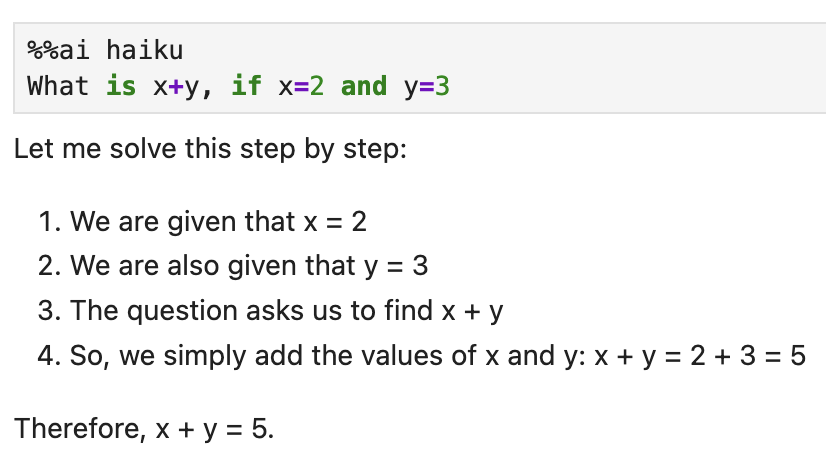
Here are some examples of using aliases. You can shorten the magics in the first line of each cell by setting a much shorter alias as shown below:
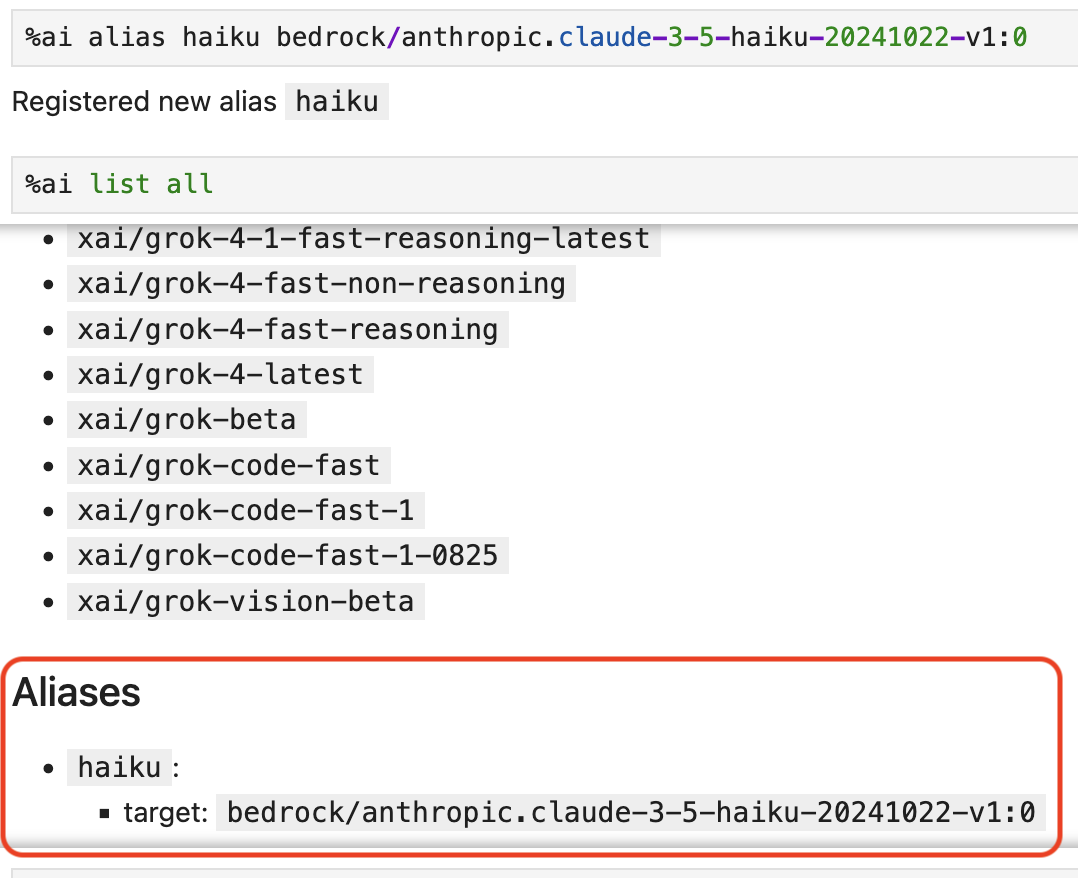
Usage of the alias is shown here:
You can remove the alias above with the dealias command: