
Getting Started#
To help you get started with Jupyter AI, we’ll walk through:
Installing Jupyter AI
Installing agents
Creating a chat in JupyterLab
Collaborating with agents in JupyterLab
Install Jupyter AI#
Install Jupyter AI in your Python environment using pip or your favorite
environment manager. Jupyter AI is distributed on PyPI and Conda Forge.
pip install jupyter-ai
uv pip install jupyter-ai
conda install -c conda-forge jupyter-ai
mamba install -c conda-forge jupyter-ai
micromamba install -c conda-forge jupyter-ai
pixi add jupyter-ai
Install agents#
To allow users to freely choose which agents they want inside of JupyterLab, Jupyter AI does not ship with any agent by default. You will need to install at least one agent to get started:
To install agents, follow the official documentation for the agents you wish to use:
Some agents also require an additional ACP adapter or package to become available in Jupyter AI. If your agent is listed below, you will also need to install the corresponding package:
npm install -g @agentclientprotocol/claude-agent-acp
npm install -g @zed-industries/codex-acp
uv tool install mistral-vibe
# or
pip install mistral-vibe
Tip
If you use a Conda environment manager, we recommend installing the ACP agent adapter inside your environment. Use the package manager required by the adapter:
conda activate <env-name>
conda install nodejs  # for npm-based adapters such as Claude Code or Codex
npm install -g <npm-package-name>

# or, for Python-based adapters such as Mistral Vibe
pip install <python-package-name>
mamba activate <env-name>
mamba install nodejs  # for npm-based adapters such as Claude Code or Codex
npm install -g <npm-package-name>

# or, for Python-based adapters such as Mistral Vibe
pip install <python-package-name>
micromamba activate <env-name>
micromamba install nodejs  # for npm-based adapters such as Claude Code or Codex
npm install -g <npm-package-name>

# or, for Python-based adapters available on Conda Forge
micromamba install -c conda-forge <conda-package-name>
pixi shell
pixi add nodejs  # for npm-based adapters such as Claude Code or Codex
npm install -g <npm-package-name>

# or, for Python-based adapters available on Conda Forge, such as Mistral Vibe
pixi add <conda-package-name>
Create a chat#
Jupyter AI will automatically detect which agents are available from the environment. You can now use Jupyter AI just by starting JupyterLab:
jupyter lab
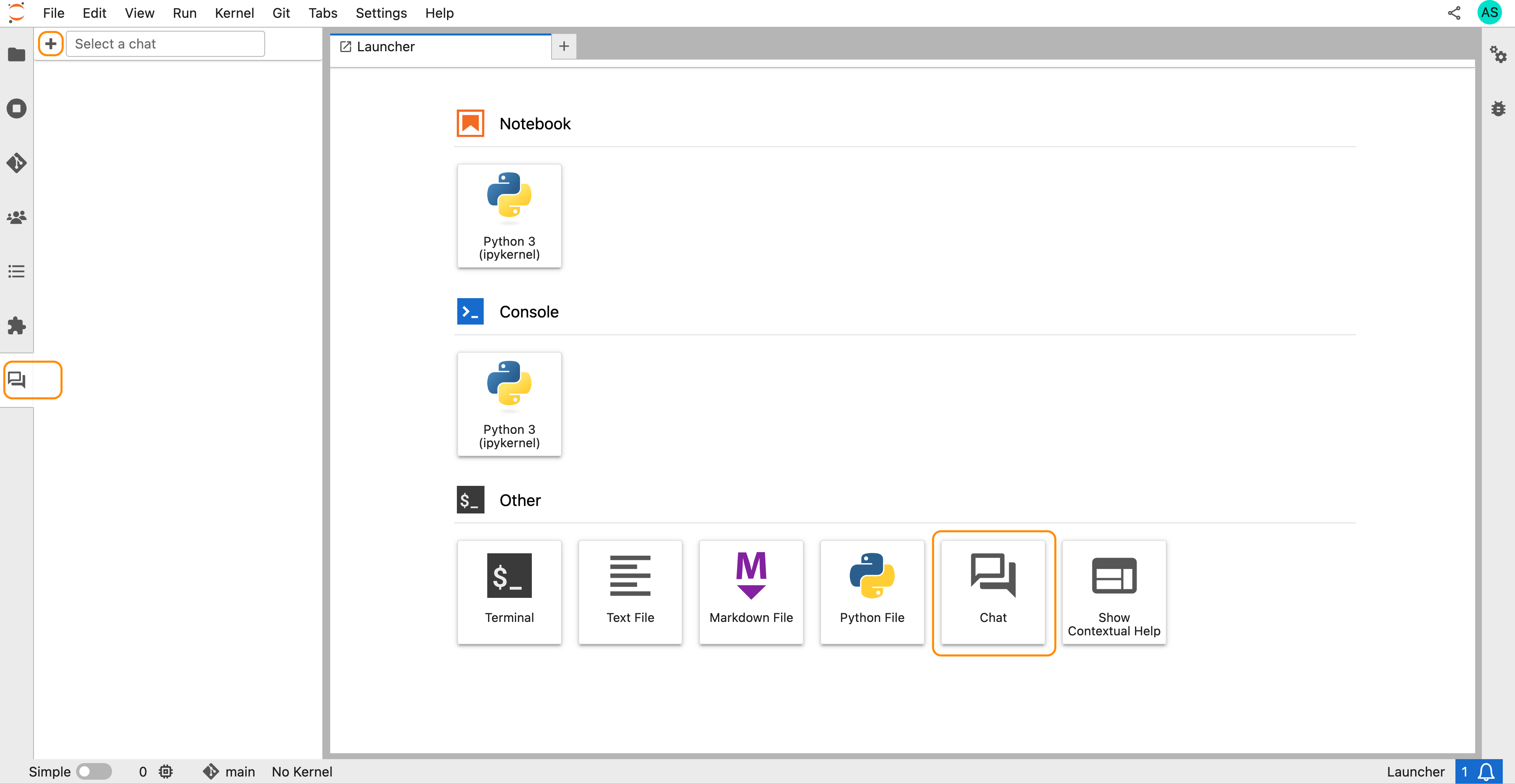
Next, create a chat by clicking the Chat card in the launcher page, or the + button in the chat sidebar panel:
Tip
In Jupyter AI, chats are simply files that live in your workspace. You can resume a chat by re-opening it as you would for any other document. You can also create and use multiple chats simultaneously to manage different threads of work.
Collaborate with an agent#
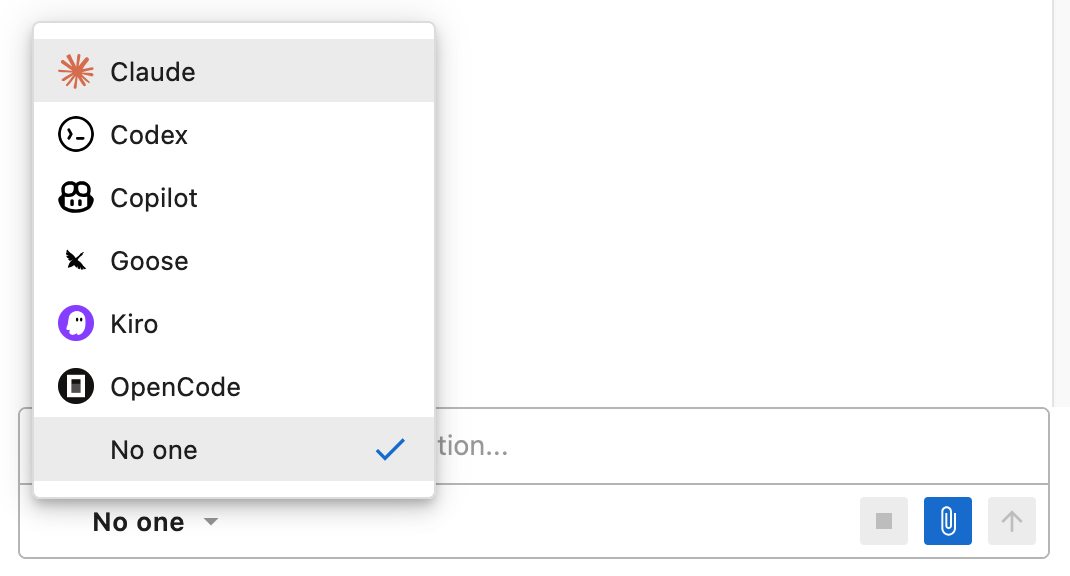
You should now see a chat open in JupyterLab. Agents appear as AI personas in every chat. You can pick an AI persona to chat with by clicking the menu in the input toolbar and selecting an AI persona.
Tip
If you’re not logged in with an agent already, the agent will not respond to your request and instead prompt you to login.
The agent installation and authentication process will be simplified and improved in future versions. For now, you may need to log in via the agent’s dedicated CLI in a separate terminal (opened automatically when possible), or pass additional environment variables and restart the server.
Whichever persona is selected is the one that will respond to your message. Simply type a prompt and send a message.
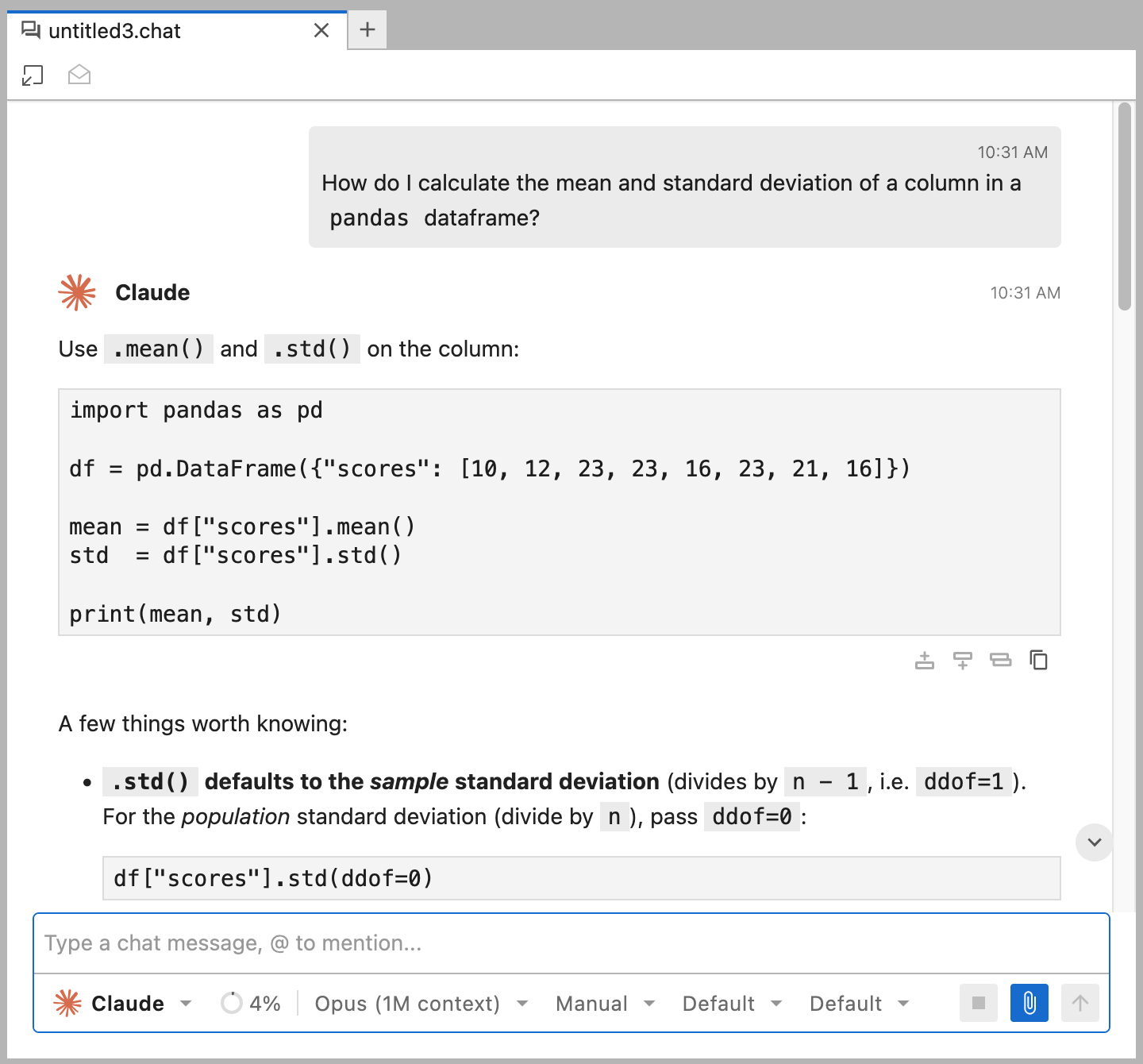
After a brief delay, additional menus will appear after the AI persona has fully initialized and reported its available settings. Each agent provides different available settings, but generally these will allow you to control the model, permission mode, effort level, and various other settings.
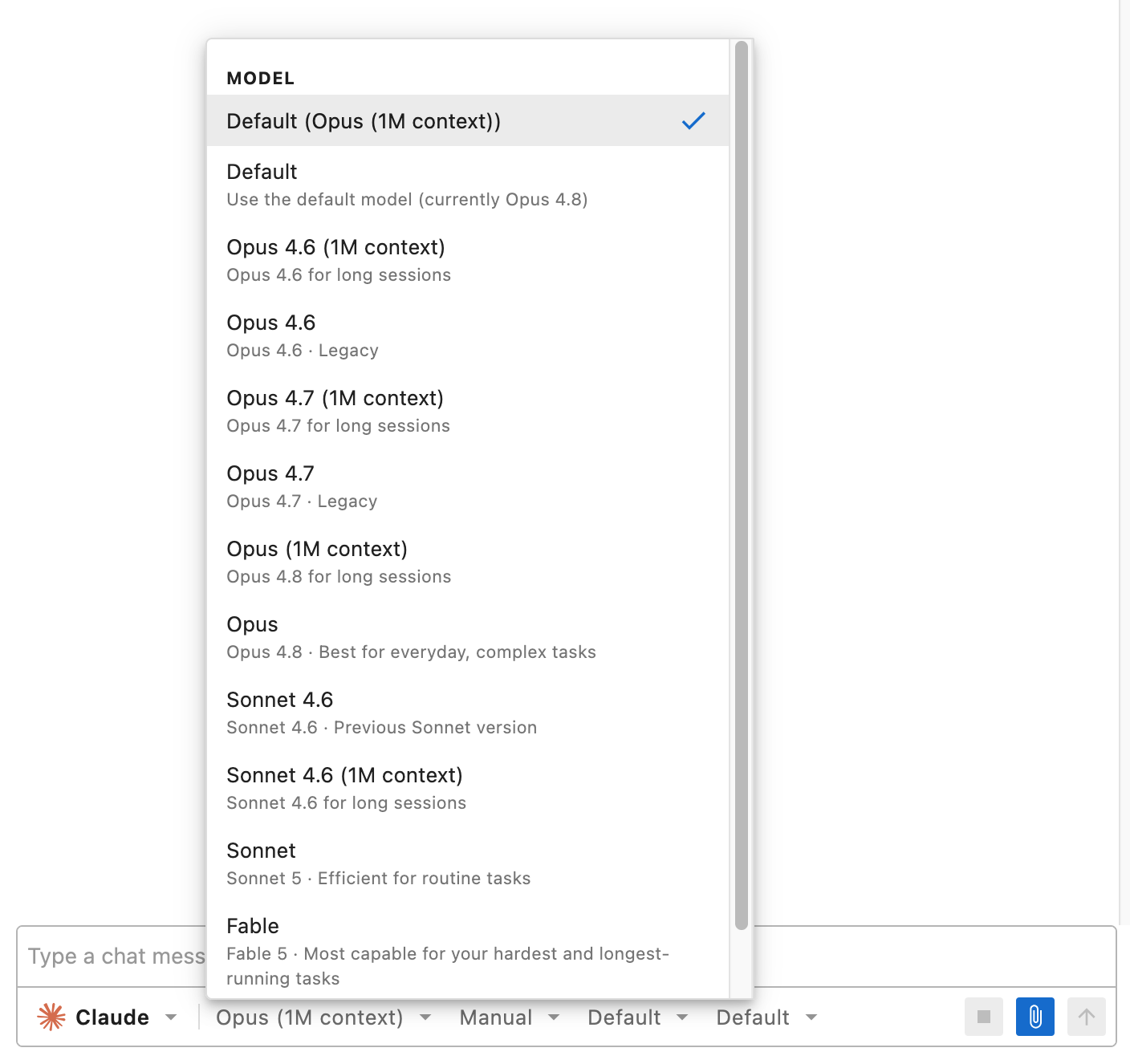
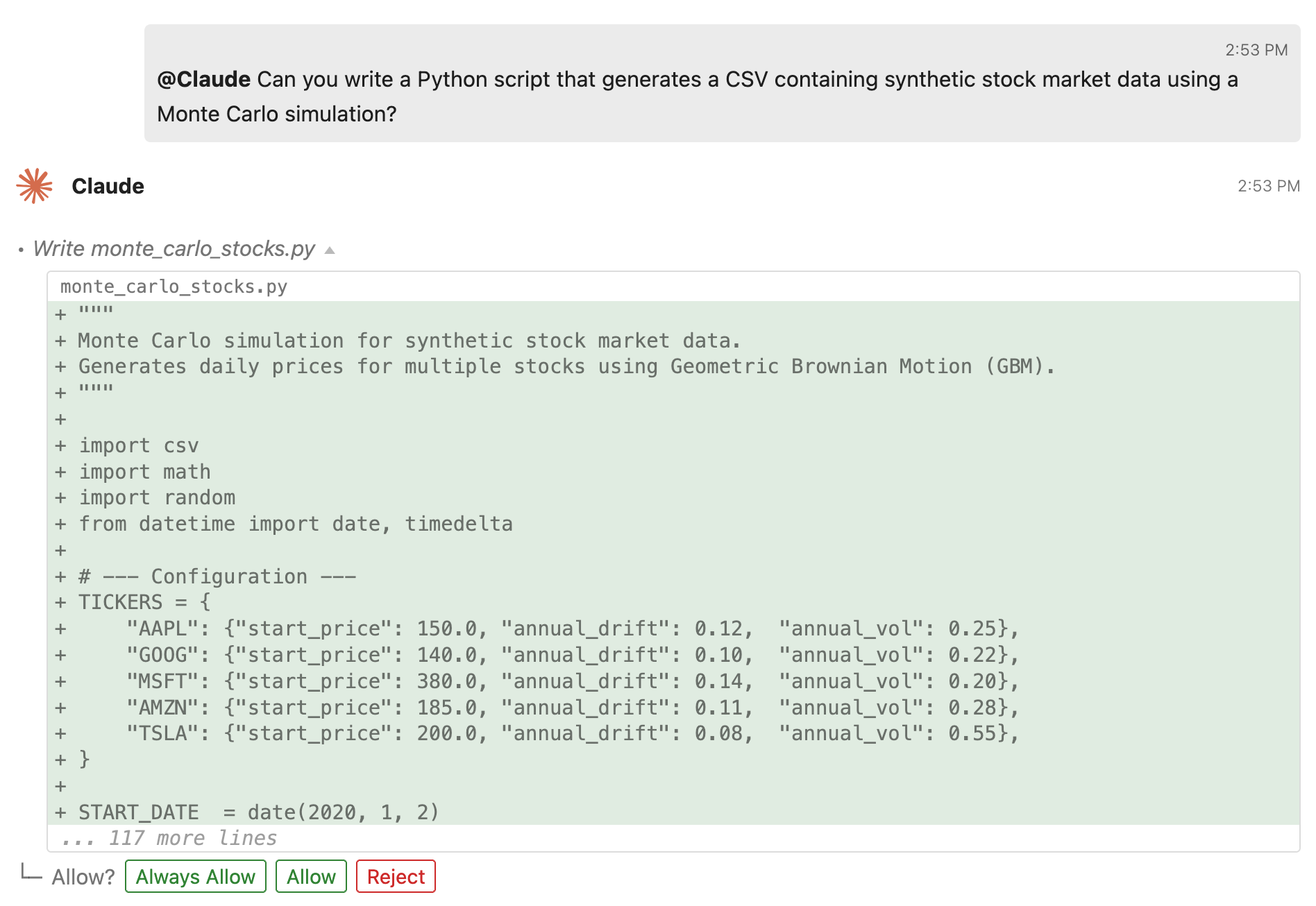
Of course, agents can read files, write files, run shell commands, and even interact with notebooks through the Jupyter MCP Server. Agents will also request permission when invoking tools, unless explicitly allowed by the controls in the input toolbar.
Next Steps#
See the full User Guide for detailed documentation on all features.
See the Contributor Guide if you want to help build Jupyter AI.
See the Developer Guide if you want to extend Jupyter AI with custom agents or MCP servers.